
Follow ZDNET: Add us as a preferred source on Google.
ZDNET’s key takeaways
- Google has again changed its policy regarding how it uses your data.
- Images, voice searches, and videos can be used to train LLMs
- You can disable this feature to retain your privacy.
When you upload any media to Google’s search services, it’s now being used to train AI. The result? Less privacy — unless you opt out.
Google quietly updated its search privacy settings last month, as announced in an email, and automatically opted all its customers into its expanded AI training. Here’s the updated documentation:
Also: 13 Google Photos settings I always change on every new device – and why
“You can choose whether Google saves media to your Search Services History when you’re signed in. Saved media includes your images, files, audio, and video from your interactions with Search services. Your media may be used to improve your experience on Google services, like letting you revisit your past visual searches. Saved media may be used to develop and improve Google’s AI models and technologies, as well as the Google services that use them. When media is saved, you can view it in your Search Services History. Learn how to find and manage Search Services History.”
If you see this pop-up, you might need to adjust some settings to protect your privacy.
Screenshot by Jack Wallen/ZDNET
What does this mean?
This new language essentially means that any media generated by your search using Google’s services can be used for any purpose, including future searches and training AI. When you combine that with the current targeted advertising, a picture emerges of less and less privacy.
Also: Google’s new AI Search box is here – along with agents and 5 more upgrades
Let’s say you’re discussing with a chatbot the idea of leaving your job. That discussion is used to further train the chatbot’s LLMs. Suppose you share specific details, such as the name of your company, your boss’s identity, and why you don’t like working there. The LLM is being trained on all that information.
A few days later, your boss happens to ask the same LLM — the one trained with your previous chat — a question about employee loyalty. In the chatbot’s response, your boss sees some rather familiar information that could perhaps make him put two and two together…
All of a sudden, your plans are doxxed. Your privacy is compromised.
Google’s update is not only about the media that appears in response to your searches. It also applies to media you upload for AI searches. For example, you upload screenshots taken with Circle to Search, photos you’ve taken, or use voice searches (via Search Live or using Google Translate to practice learning a new language); even that data is now saved to train LLMs.
Consider this: Your voice is used to train LLMs. Imagine if someone were to decide to use AI to create an audio clip of you saying something you didn’t say.
Also: Sick of AI in Search? These 7 Google alternatives still put links first
Dystopian? Yes. Reality? Also, possibly yes.
All this is being done in to improve Google’s AI searches.
What can you do?
The most important thing you can do is opt out of this feature/service. Doing so will ensure that those media files are not used to train LLMs.
Also: How to remove AI Overviews from Google Search: 4 easy ways
There are two pages within Settings to focus on: Search Service History and Search Service Personalization.
For the Search Service History page, open the Google app, tap your profile image in the top right corner, then tap “Search history.” On that page, make sure “Save media” is unchecked, then tap the top entry for Search Service History. If you see that it’s listed as On, tap that button, and then you can turn the service off.
You not only want to disable this feature, but also uncheck the “Save media” option.
Screenshot by Jack Wallen/ZDNET
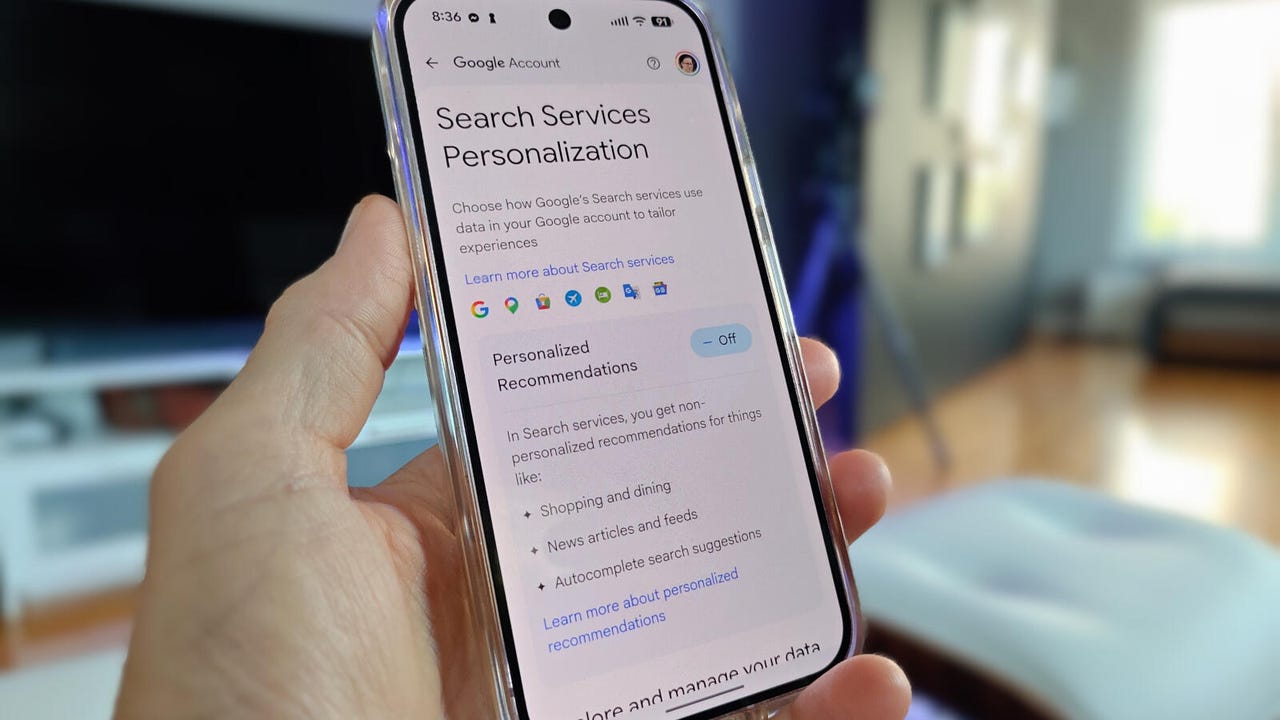
For Search Service Personalization, go back to the Google app, tap your profile image, and then tap “Search personalization.” On this page, tap the top entry and, from the resulting page, make sure the service is turned off.
Another service you’ll want to turn off is Search Service Personalization.
Screenshot by Jack Wallen/ZDNET
If you can’t find these pages (or if your device doesn’t allow you to disable the services here), there’s another option. Head over to myactivity.google.com, click Search Services History, and uncheck the box for Save media. I keep all of those options disabled to ensure my privacy.
Not only do you want to make sure Search Service History is disabled, but you also want to uncheck the box for Save media.
Screenshot by Jack Wallen/ZDNET
If you decide to leave any of these features on, you can configure the duration for which that information is retained: 3 months, 18 months, or 36 months.
If you opt to allow Google to save your media, you can at least configure when it will be permanently deleted.
Screenshot by Jack Wallen/ZDNET
The good news is you have some control here. You can change your preferences on the Search Services History and Search Services Personalization pages. On the former, you can uncheck the “Save media” box separately from the Search Services History box, or uncheck both. You can also configure how often you want saved data automatically deleted — after 3, 18, or 36 months.
Finally, go to myadcenter.google.com and ensure the Personalized Ads feature is disabled.
Are there downsides to this?
If you consider Google’s ability to predict what you might want to see in advertisements a positive thing, or if you like the idea of the company using your images, voice, videos, and other files to train its large language models, then you might consider leaving these features enabled. Likewise, if you like personalized ads (because they make shopping easier), leave those settings enabled.
Also: 5 reasons I use local AI on my desktop – instead of ChatGPT, Gemini, or Claude
This is a half-full/half-empty scenario that depends on what level of privacy you are comfortable with. For me, it’s very much a half-empty situation, but that is because I consider my privacy to be of utmost importance. The need for as much privacy as I can muster is also part of why I only use locally installed AI.
If you consider privacy as important as I do, consider disabling this feature so Google’s LLMs don’t train on your saved media. If you really want to up your privacy, consider only using locally installed AI.