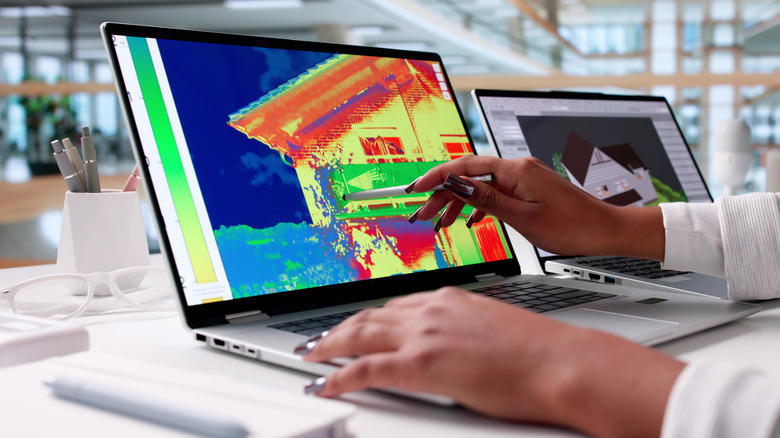
There are a ton of laptops on the market at any given moment, and almost all of those models are available in multiple configurations to match your performance and budget needs. So if you’re feeling overwhelmed with options when looking for a new laptop, it’s understandable. To help simplify things for you, here are the main things you should consider when you start looking.
Price
The search for a new laptop for most people starts with price. If the statistics chipmaker Intel and PC manufacturers hurl at us are correct, you’ll be holding onto your next laptop for at least three years. If you can afford to stretch your budget a little to get better specs, do it. And that stands whether you’re spending $500 or more than $1,000. In the past, you could get away with spending less upfront with an eye toward upgrading memory and storage in the future. But laptop makers are increasingly moving away from making components easily upgradable, so again, it’s best to get as much laptop as you can afford from the start.
Generally speaking, the more you spend, the better the laptop. That could mean better components for faster performance, a nicer display, sturdier build quality, a smaller or lighter design from higher-end materials or even a more comfortable keyboard. All of these things add to the cost of a laptop. I’d love to say $500 will get you a powerful gaming laptop, for example, but that’s not the case. Right now, the sweet spot for a reliable laptop that can handle average work, home office or school tasks is between $700 and $800 and a reasonable model for creative work or gaming upwards of about $1,000. The key is to look for discounts on models in all price ranges so you can get more laptop for less.
Operating system
Choosing an operating system is part personal preference and part budget. For the most part, Microsoft Windows and Apple’s MacOS do the same things (except for gaming, where Windows is the winner), but they do them differently. Unless there’s an OS-specific application you need, go with the one you feel most comfortable using. And if you’re not sure which that is, head to an Apple store or a local electronics store and test them out. Or ask friends or family to let you test theirs for a bit. If you have an iPhone or iPad and like it, chances are you’ll like MacOS too.
But when it comes to price and variety (and, again, PC gaming), Windows laptops win. If you want MacOS, you’re getting a MacBook. While Apple’s MacBooks regularly top our best lists, the least expensive one is the M1 MacBook Air for $999. It is regularly discounted to $750 or $800, but if you want a cheaper MacBook, you’ll have to consider older refurbished ones.
Windows laptops can be found for as little as a couple of hundred dollars and come in all manner of sizes and designs. Granted, we’d be hard-pressed to find a $200 laptop we’d give a full-throated recommendation to, but if you need a laptop for online shopping, email and word processing, they exist.
If you are on a tight budget, consider a Chromebook. ChromeOS is a different experience than Windows; make sure the applications you need have a Chrome, Android or Linux app before making the leap. But if you spend most of your time roaming the web, writing, streaming video or using cloud-gaming services, they’re a good fit.
Size
Remember to consider whether having a lighter, thinner laptop or a touchscreen laptop with a good battery life will be important to you in the future. Size is primarily determined by the screen — hello, laws of physics — which in turn factors into battery size, laptop thickness, weight and price. And keep in mind other physics-related characteristics, such as an ultrathin laptop isn’t necessarily lighter than a thick one, you can’t expect a wide array of connections on a small or ultrathin model and so on.
Screen
When it comes to deciding on a screen, there are a myriad considerations: how much you need to display (which is surprisingly more about resolution than screen size), what types of content you’ll be looking at and whether you’ll be using it for gaming or creative work.
You really want to optimize pixel density; that is, the number of pixels per inch the screen can display. Though there are other factors that contribute to sharpness, a higher pixel density usually means sharper rendering of text and interface elements. (You can easily calculate the pixel density of any screen at DPI Calculator if you don’t feel like doing the math, and you can also find out what math you need to do there.) We recommend a dot pitch of at least 100 pixels per inch as a rule of thumb.
Because of the way Windows and MacOS scale for the display, you’re frequently better off with a higher resolution than you’d think. You can always make things bigger on a high-resolution screen, but you can never make them smaller — to fit more content in the view — on a low-resolution screen. This is why a 4K, 14-inch screen may sound like unnecessary overkill but may not be if you need to, say, view a wide spreadsheet.
If you need a laptop with relatively accurate color, that displays the most colors possible or that supports HDR, you can’t simply trust the specs — not because manufacturers lie, but because they usually fail to provide the necessary context to understand what the specs they quote mean. You can find a ton of detail about considerations for different types of screen uses in our monitor buying guides for general purpose monitors, creators, gamers and HDR viewing.
Processor
The processor, aka the CPU, is the brains of a laptop. Intel and AMD are the main CPU makers for Windows laptops, with Qualcomm as a new third option with its Arm-based Snapdragon X processors. Both Intel and AMD offer a staggering selection of mobile processors. Making things trickier, both manufacturers have chips designed for different laptop styles, like power-saving chips for ultraportables or faster processors for gaming laptops. Their naming conventions will let you know what type is used. You can head to Intel’s or AMD’s sites for explanations so you get the performance you want. Generally speaking, the faster the processor speed and the more cores it has, the better the performance will be.
Apple makes its own chips for MacBooks, which makes things slightly more straightforward. But, like Intel and AMD, you’ll still want to pay attention to the naming conventions to know what kind of performance to expect. Apple uses its M-series chipsets in Macs. The entry-level MacBook Air uses an M1 chip with an eight-core CPU and seven-core GPU. The current models have M2-series silicon that starts with an eight-core CPU and 10-core GPU and goes up to the M2 Max with a 12-core CPU and a 38-core GPU. Again, generally speaking, the more cores it has, the better the performance.
Battery life has less to do with the number of cores and more to do with CPU architecture, Arm versus x86. Apple’s Arm-based MacBooks and the first Arm-based Copilot Plus PCs we’ve tested offer better battery life than laptops based on x86 processors from Intel and AMD.
Graphics
The graphics processor handles all the work of driving the screen and generating what gets displayed, as well as speeding up a lot of graphics-related (and increasingly, AI-related) operations. For Windows laptops, there are two types of GPUs: integrated (iGPU) or discrete (dGPU). As the names imply, an iGPU is part of the CPU package, while a dGPU is a separate chip with dedicated memory (VRAM) that it communicates with directly, making it faster than sharing memory with the CPU.
Because the iGPU splits space, memory and power with the CPU, it’s constrained by the limits of those. It allows for smaller, lighter laptops, but doesn’t perform nearly as well as a dGPU. In fact, there are some games and creative software that won’t run unless they detect a dGPU or sufficient VRAM. Most productivity software, video streaming, web browsing and other nonspecialized apps will run fine on an iGPU, though.
For more power-hungry graphics needs, like video editing, gaming and streaming, design and so on, you’ll need a dGPU; there are only two real companies that make them, Nvidia and AMD, with Intel offering some based on the Xe-branded (or the older UHD Graphics branding) iGPU technology in its CPUs.
Memory
For memory, we highly recommend 16GB of RAM (8GB absolute minimum). RAM is where the operating system stores all the data for currently running applications, and it can fill up fast. After that, it starts swapping between RAM and SSD, which is slower. A lot of sub-$500 laptops have 4GB or 8GB, which in conjunction with a slower disk can make for a frustratingly slow Windows laptop experience. Also, many laptops now have the memory soldered onto the motherboard. Most manufacturers disclose this, but if the RAM type is LPDDR, assume it’s soldered and can’t be upgraded.
However, some PC makers will solder memory on and also leave an empty internal slot for adding a stick of RAM. You may need to contact the laptop manufacturer or find the laptop’s full specs online to confirm. And check the web for user experiences, because the slot may still be hard to get to, it may require nonstandard or hard-to-get memory or other pitfalls.
Storage
You’ll still find cheaper hard drives in budget laptops and larger hard drives in gaming laptops, but faster solid-state drives have all but replaced hard drives in laptops. They can make a big difference in performance. But not all SSDs are equally speedy, and cheaper laptops typically have slower drives; if the laptop has only 4GB or 8GB of RAM, it may end up swapping to that drive and the system may slow down quickly while you’re working.
Get what you can afford, and you likely need less than you think. If you need to go with a smaller drive, you can always add an external drive or two down the road or use cloud storage to bolster a small internal drive. The one exception is gaming laptops: We don’t recommend going with less than a 512GB SSD unless you really like uninstalling games every time you want to play a new game.

Stephan is the sports journalist for the Maple Grove Report.